Fluxketch
What DWG is
DWG is AutoCAD's native format. It is binary — not human-readable — and its internal structure changes by version (R14, 2000, 2004, 2007, 2010, 2013, 2018). Any program other than AutoCAD needs its own engine to interpret it, and the quality of that engine decides whether layers survive and linetypes are right.
The same drawing written out as text is DXF, an open format any CAD can read and write. The differences are covered in DWG vs DXF.
What usually goes wrong on iPad
- Layers disappear. A viewer that flattens the DWG into one picture can't toggle layers, and the drawing can't go back.
- Weights and linetypes collapse. Dashed and dash-dot lines shown as solid, heavy wall lines shown thin — the drawing reads wrong.
- Some lines are missing. Many apps skip multilines (MLINE), 3D faces and entities drawn in an arbitrary coordinate system (OCS). You won't know unless the app tells you.
- The scale is off. Read a millimetre drawing as metres and it is 1,000 times too small. Apps that don't ask for the unit fail here.
- Large files won't open. DWG grows four to six times as DXF, and some apps reject it at that size.
Three ways to open a DWG on iPad
- Save as DXF on the PC and take that. The surest route. In AutoCAD, Save As → DXF (2018 ASCII), then move it over iCloud or AirDrop. It opens offline from the start, even on a site with no coverage.
- Use an app that opens DWG directly. The app converts it. Whether conversion runs on the device or a server, whether layers and linetypes survive, and whether skipped elements are reported all differ by app.
- Print to PDF. The choice when you only need to look. With a known scale you can still mark up on top.
Opening with layers intact (in Fluxketch)
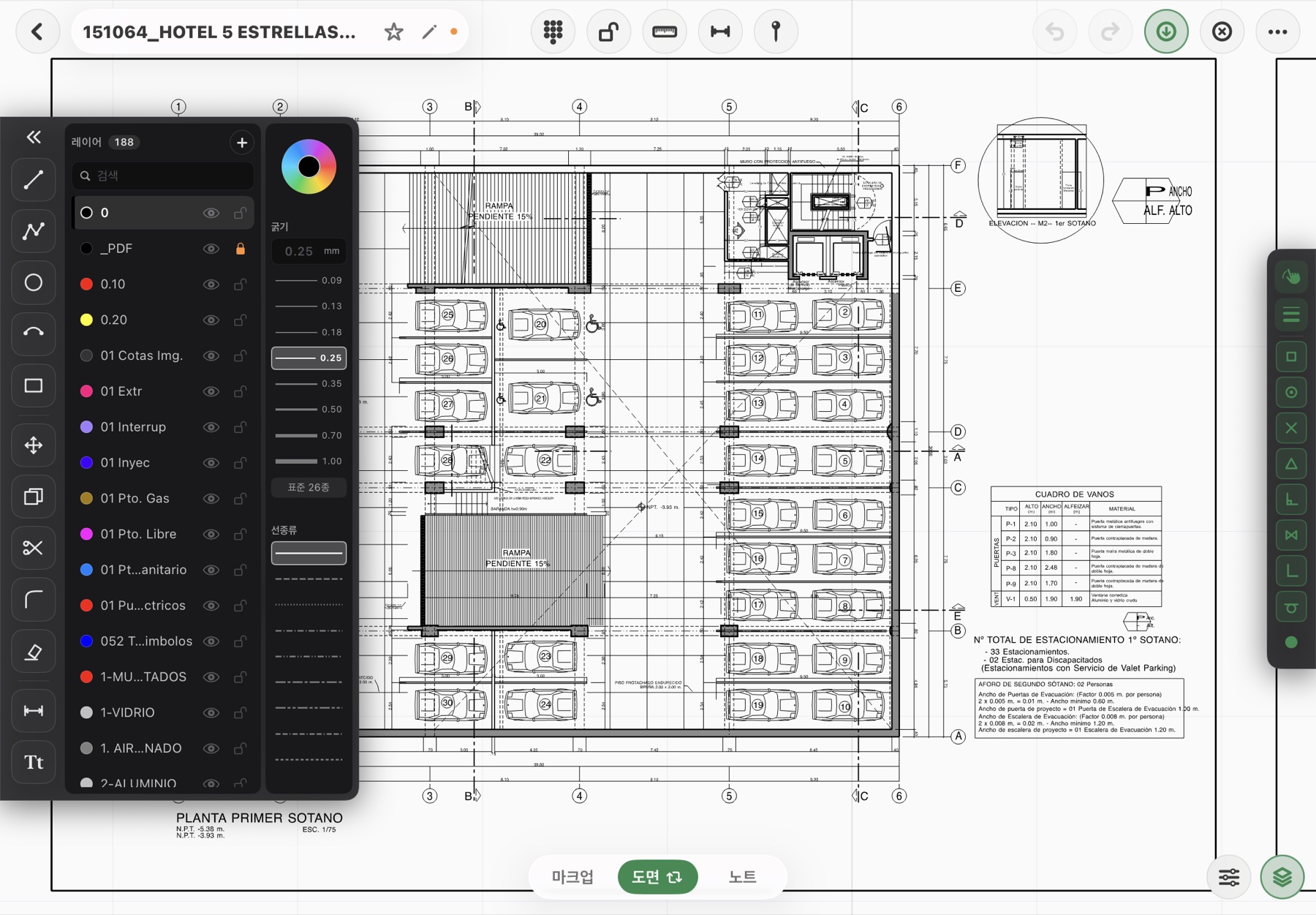
- Tap Import on the dashboard and pick the DWG from the Files app, iCloud or a mail attachment. If iCloud hasn't downloaded it yet, the app waits for the download before reading.
- The conversion server turns DWG into DXF (LibreDWG-based, R14 to 2018). This is the only step that needs a connection.
- The import report lists layer and entity counts plus anything skipped by type and count. Multileaders, wipeouts and regions aren't supported yet, so check here.
- Entities on frozen or off layers are imported but hidden, and the app says so. Turn the layer on in the panel and they appear.
A DWG truncated in transit by mail or chat won't open in any app. If the conversion server reports a missing end-of-file, get the original again.
Selecting and editing CAD objects
Once open, it's CAD, not a viewer. Twelve tools — line, polyline, circle, arc, rectangle, text, move, copy, fillet, trim, erase, dimension — with endpoint and ortho snaps and a numeric keypad, the same way you draw at the office. Select an entity and change its layer, color, weight and linetype in the palette. Details in How to edit real drawings with a CAD app on iPad.
Apple Pencil markup
To leave marks without touching CAD entities, use markup mode. Pen, marker and pencil strokes are locked to drawing coordinates, so they stay put after zoom and pan, and a pin with a photo and note makes the position the record. See Marking up CAD drawings with Apple Pencil.
Plotting to scale
Plot PDFs carry the chosen scale and a 100 mm check ruler. If the ruler measures 100 mm on paper, the printer didn't rescale. Markup ink and pins print at the same coordinates. Steps in Plotting CAD drawings to scale PDF from iPad.
In short
- The surest route is saving as DXF on the PC.
- When opening DWG directly, check that layers and linetypes survive and that skipped elements are reported.
- Use an app that asks for the unit. Scale is decided there.
If you need real CAD editing on iPad, Fluxketch opens DWG and DXF with layers intact. Everything is free during the beta.
Download on the App Store