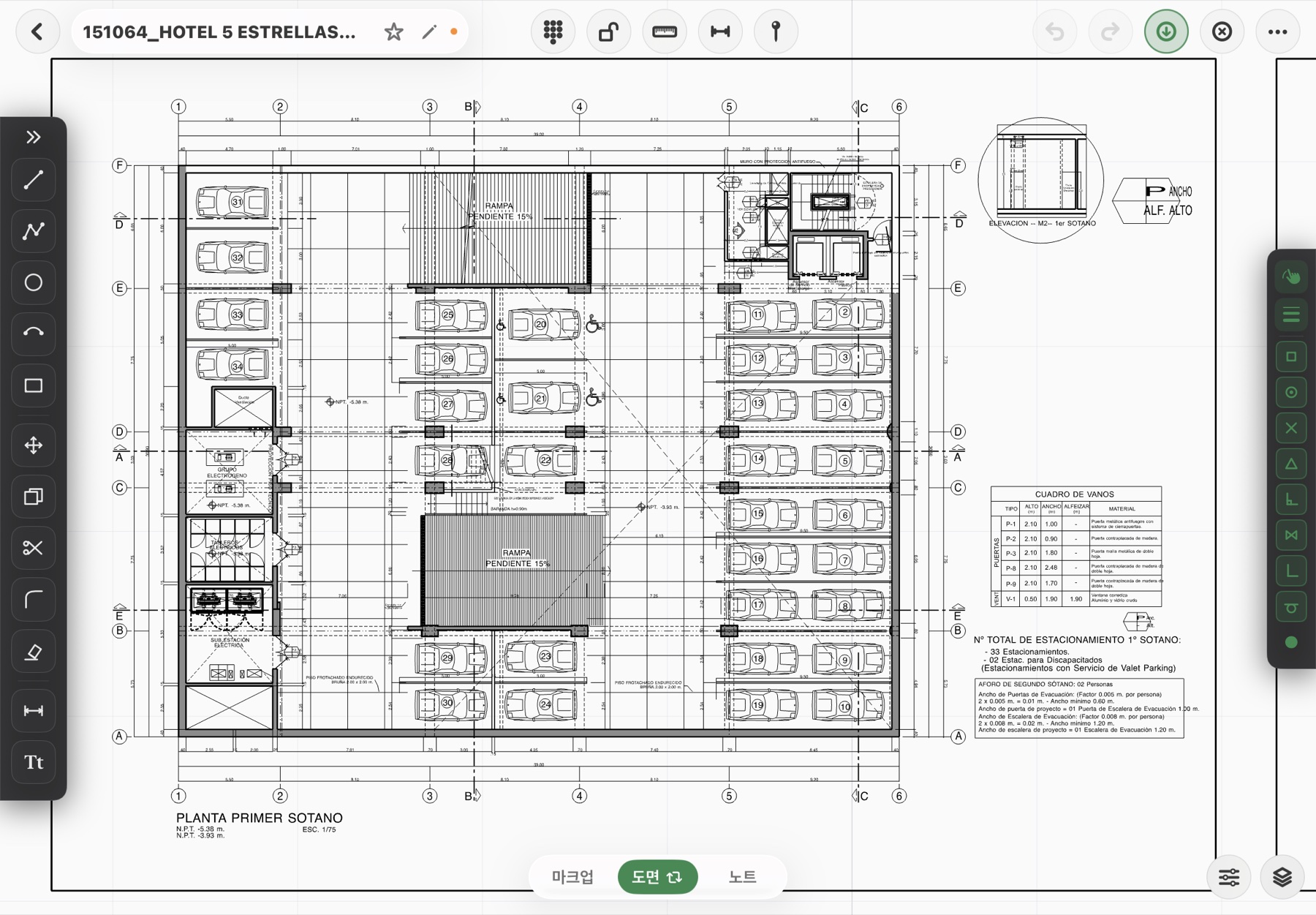
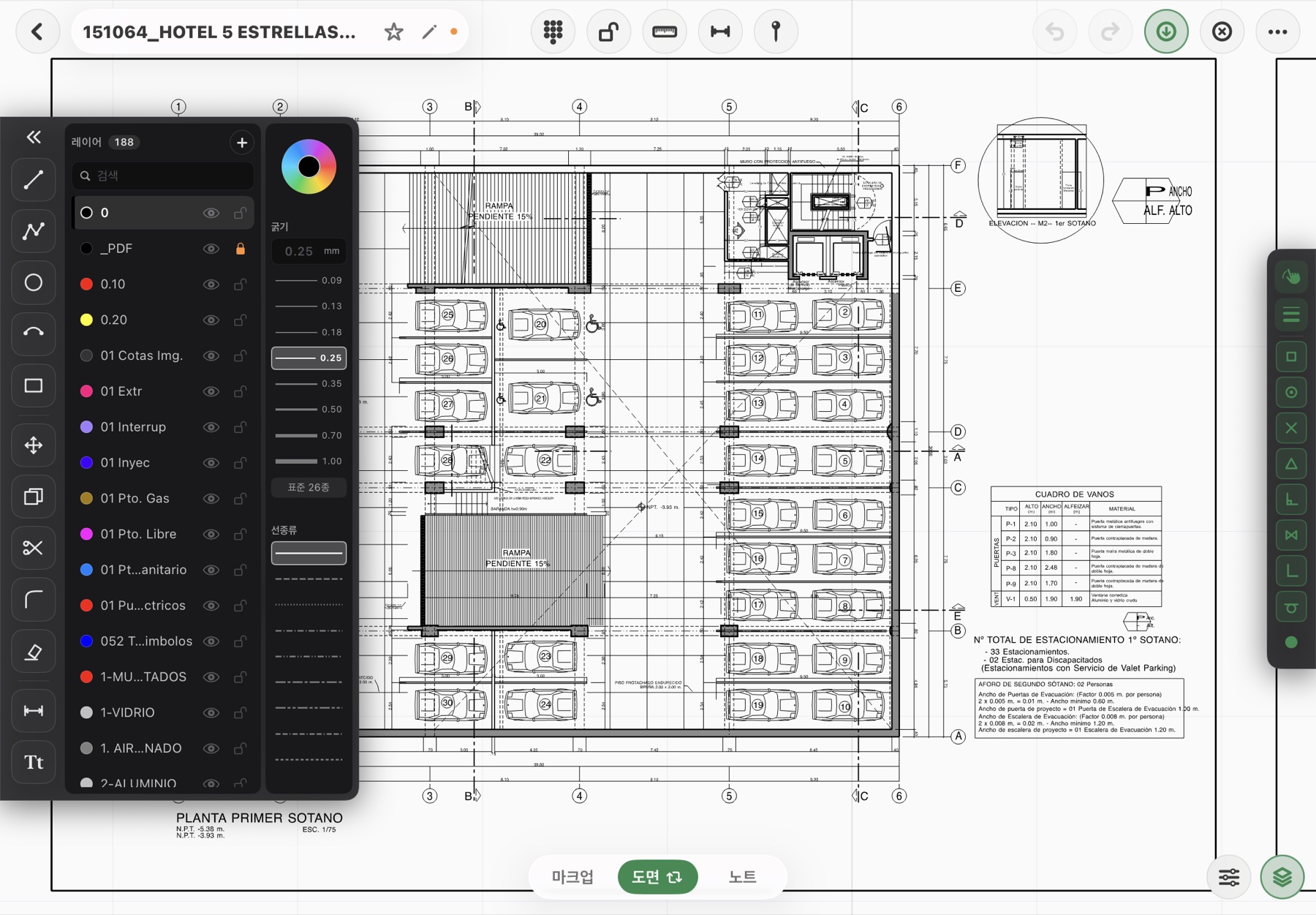
Can you really do CAD work on an iPad?
Yes. Fluxketch is an editor, not a viewer. Twelve tools — line, polyline, circle, arc, rectangle, text, move, copy, fillet, trim, erase, dimension — with endpoint and ortho snaps and a numeric keypad, the same way you draw on desktop CAD. Pan and zoom hold 60 Hz on a 180,000-entity drawing.
How do I open a DWG file?
Pick a DWG from the Files app, iCloud or a mail attachment and the Fluxketch conversion server turns it into DXF for opening (the only step that needs a connection). DXF and PDF open fully offline. Layers, colors, weights, linetypes, blocks, hatches and multilines come across; anything that can't be imported is counted in the import report.
Can I edit DXF?
Yes. DXF asks for its unit (mm, cm, m, inch, ft) on read and corrects coordinates. Select entities to move, copy, trim or erase, then export back to DXF and keep drawing in office CAD.
Do lines stay vector?
They do. A Metal vector renderer draws the lines; on large drawings a raster tile pyramid draws alongside and snaps back to sharp vector the moment you stop. Switch to sheet view for black lines on white, like a print.
Can I add or change dimensions?
The dimension tool takes two points and writes the real length with units. The true-scale ruler shows the screen at 1:1 to 1:1,000, and a 100 mm check ruler on paper verifies even printer scaling.
Does it work with Apple Pencil?
Both CAD tools and markup use Apple Pencil. Pen, marker and pencil strokes are locked to drawing coordinates, so they never drift while zooming or panning, and the Pencil never pans the canvas — panning is for fingers.
Can I print to scale?
Plot PDFs carry the chosen scale and a 100 mm check ruler. Markup ink and pins print as they are. Sheet issue exports only the sheets you pick.
Which iPad do I need?
Any iPad with an Apple Pencil. Large drawings are most comfortable on M-series iPads; the beta is also verified on iPad 9th generation and A16 models. iPadOS only — there is no iPhone, Android or Windows version.
 Fluxketch